Introduction
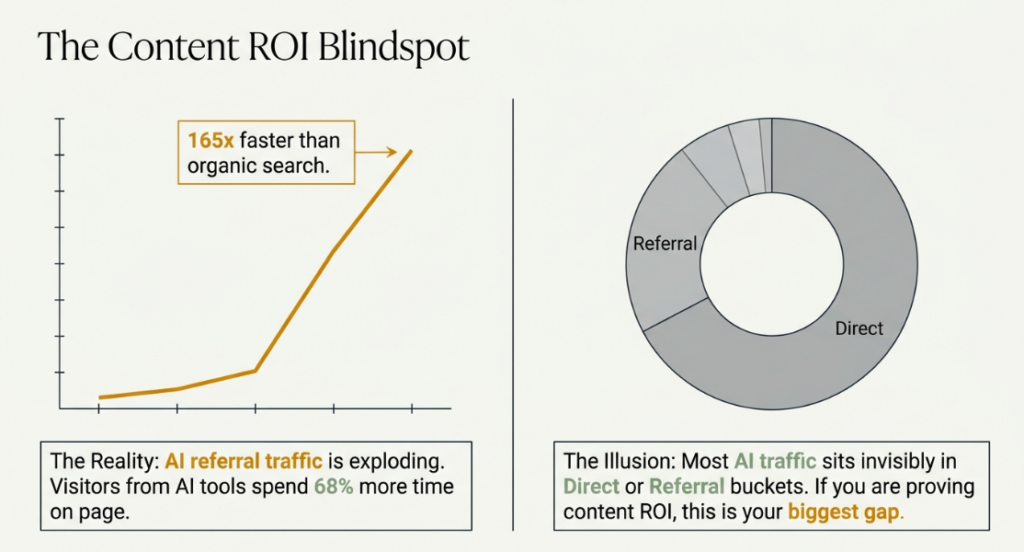
AI referral traffic is growing 165x faster than organic search, and most of it is sitting invisibly in your GA4 Referral or Direct bucket right now. If you are a digital marketer, SEO professional, or agency owner in India trying to prove the value of your content strategy, that is a serious blind spot.
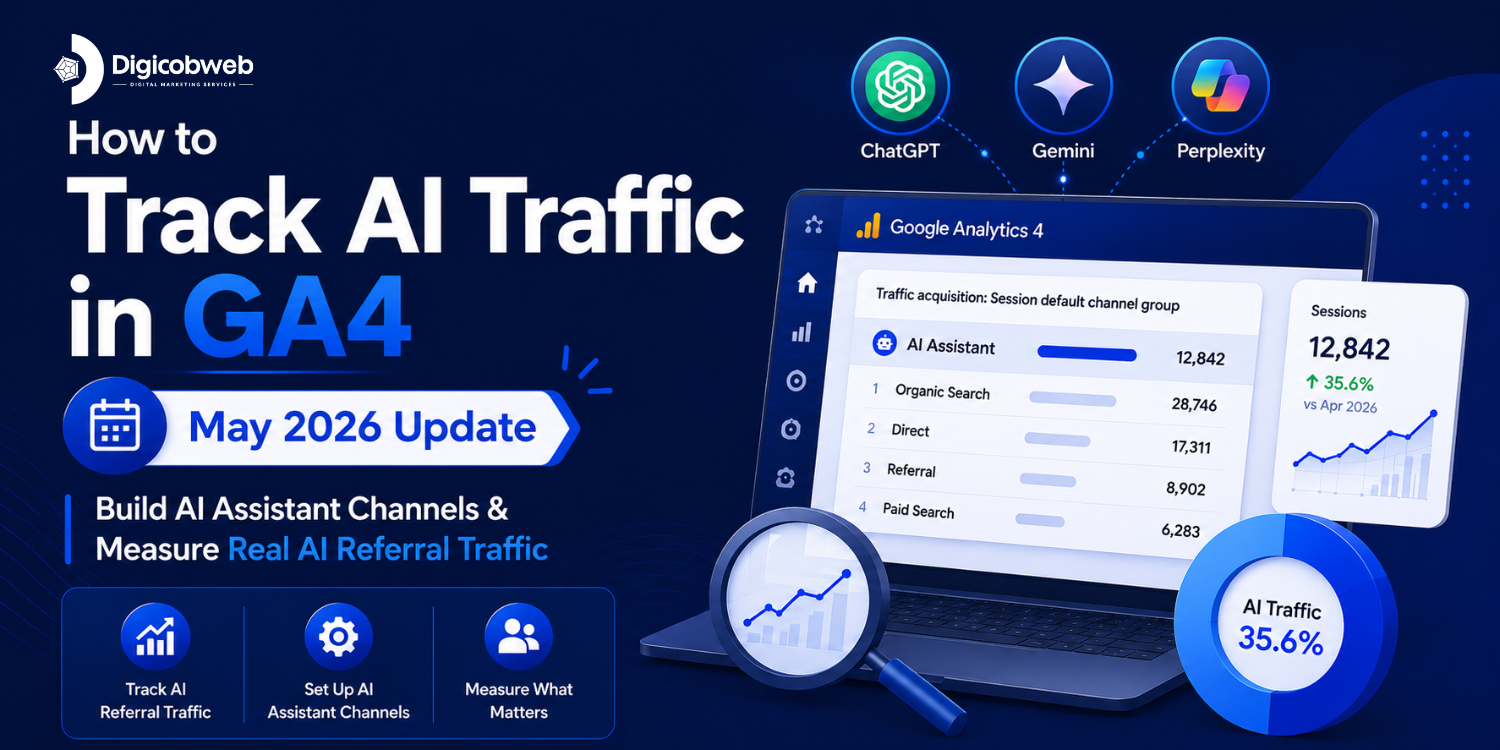
On May 13, 2026, Google changed everything with one quiet update. GA4 now automatically classifies traffic from ChatGPT, Claude, Gemini, and Perplexity into a dedicated “AI Assistant” channel, no regex required, no custom setup needed. You finally have a native way to track AI traffic in GA4.
But here is what none of the generic guides will tell you: the new channel only captures part of the picture. If you stop at the default setup, you will still be missing up to 70% of your real AI-driven traffic.
This guide covers everything: what GA4’s default channel group is, how the new AI Assistant channel works, step-by-step setup, how to fix unassigned traffic, and how Indian e-commerce and agency teams can use this data to get ahead of the curve.
By the end, you will know exactly how to benchmark, track, and act on your AI traffic data before your competitors even realize it matters.
What Is GA4’s Default Channel Group? Everything You Need to Know
Before you can understand the AI Assistant channel, you need to understand the system it lives inside, GA4’s default channel group.
How GA4 Classifies Every Visitor to Your Site
Every time someone visits your website, GA4 asks a simple question: where did this person come from? The answer gets filed into one of several predefined traffic buckets based on the referrer data, UTM parameters, and medium attached to the session.
This filing system is called the default channel group. It is the backbone of every traffic acquisition report you have ever looked at in GA4. It determines whether a session is labeled Organic Search, Paid Search, Social, Email, Direct, Referral, or now, AI Assistant.
Also Read: GA4 Traffic Metrics: A Complete Guide for Marketers
The 9 Default Channel Buckets in GA4 Explained
GA4 sorts every session into one of nine buckets: Organic Search, Paid Search, Organic Social, Email, Direct, Referral, Unassigned, and now the new AI Assistant. Each bucket follows a specific rule. If the referrer or UTM data attached to a session does not match any rule, GA4 falls back to Unassigned or Direct. That fallback is the root cause of most AI traffic attribution problems.
Why the Default System Was Broken for AI Traffic
The original default channel group was designed in an era when traffic came from search engines, social platforms, and other websites. AI tools did not exist as traffic sources. When ChatGPT started sending referral clicks to your site, GA4 had nowhere to put them, so it dropped them into Referral alongside forum backlinks and press mentions.
It got worse. When someone clicked a ChatGPT citation link on a mobile app, the referrer header was stripped entirely. GA4 saw a session with no source information and labeled it Directly completely indistinguishable from someone typing your URL.
This is why teams who cared about AI traffic spent months building custom channel groups with regex patterns, manually listing chatgpt.com, claude.ai, and perplexity.ai to isolate these sessions. It worked, but it required editor-level GA4 access, ate up one of only two available custom channel group slots, and needed constant maintenance as AI platforms changed domains.
The May 2026 update moves that logic from your settings into the platform itself.
What Changed on May 13, 2026: GA4’s New AI Assistant Channel
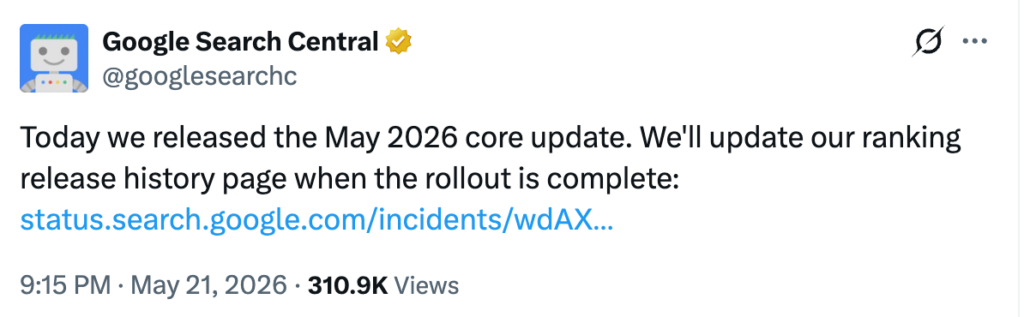
This is the update that the entire SEO and analytics industry has been waiting for. Here is exactly what happened.
What Google Actually Announced
On May 13, 2026, Google added “AI Assistant” as a native default channel group in GA4. When GA4 detects a referrer matching a recognized AI assistant, it automatically assigns the medium value as “ai-assistant,” groups the session under the AI Assistant channel in Default Channel Group reports, and labels the campaign as “ai-assistant.”
Three traffic dimensions are now assigned automatically at the same time: medium, channel, and campaign. Previously, all three required either a UTM tag or a custom channel rule. Now GA4 handles all three without any action from you.
This is not the first time Google has done this. In 2022, it added a “cross-network” channel specifically for Performance Max campaigns. The pattern is the same: when a traffic source grows too big to ignore, Google builds it directly into GA4 so everyone can track it without custom setup.
The Three Dimensions GA4 Now Assigns Automatically
When a visitor arrives from a recognized AI tool, GA4 now sets the following:
- Session medium → ai-assistant
- Default channel group → AI Assistant
- Campaign → AI assistant
This means you can now filter for AI traffic using any of these three dimensions across standard reports, Explore, and Looker Studio without building anything custom.
Which AI Tools GA4 Currently Recognises
Google has named ChatGPT, Gemini, and Claude as examples of recognized AI assistants but has not published its full list of covered referrers. The August 2025 custom channel group guidance named five platforms: ChatGPT, Gemini, Microsoft Copilot, Claude, and Perplexity.
Importantly, the Default Channel Group definitions page has not yet been updated to include the AI Assistant channel in its formal channel table, meaning the exact matching rules are not publicly documented. Tools like Grok, Meta AI, DeepSeek, and You.com may or may not be included, which is one reason why your actual AI-driven traffic is almost certainly higher than what GA4 is showing.
Quick note: GA4 also has a built-in Gemini assistant that answers questions inside your dashboard that is separate from the AI Assistant traffic channel, which tracks visitors arriving from outside tools like ChatGPT.
How to Set Your AI Traffic Benchmark in GA4 in Under 5 Minutes
This is the first action you should take today. Even if your AI traffic volume looks small, you need a documented baseline.
Step 1: Go to Explore and Create a Blank Exploration
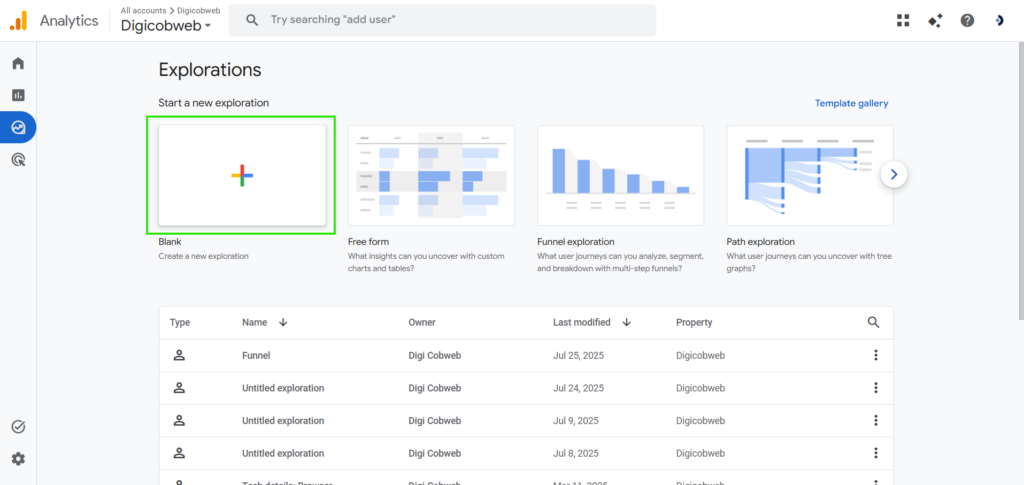
In your GA4 property, click on Explore in the left navigation panel. Select Blank to start a new, empty exploration report. Name it something clear, “AI Traffic Benchmark [Month Year],” so you can find it later and share it with your team or clients.
GA4’s Explore section is more flexible than the standard reports. It allows custom dimensions, filters, and date comparisons that the built-in Traffic Acquisition report does not support. For AI traffic analysis, it is the right tool.
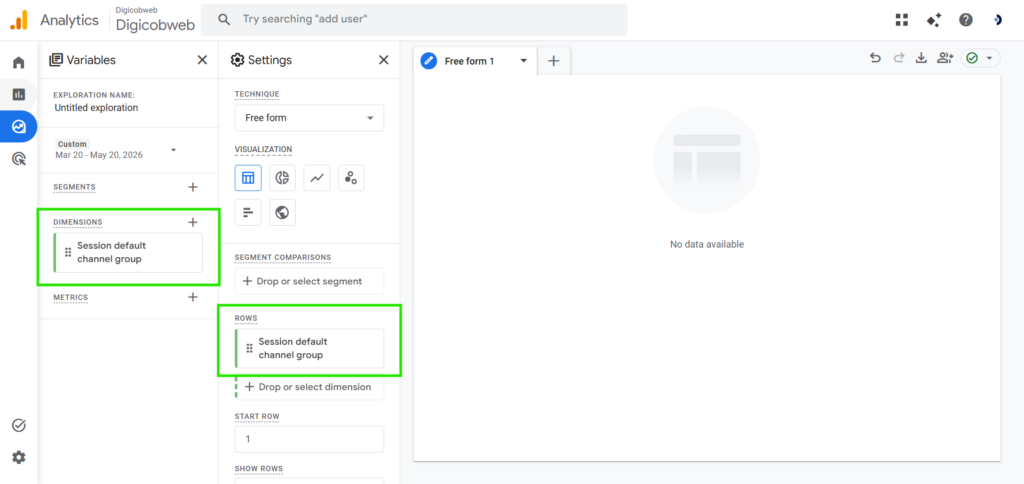
Step 2: Set Your Primary Dimension to Session Default Channel Group
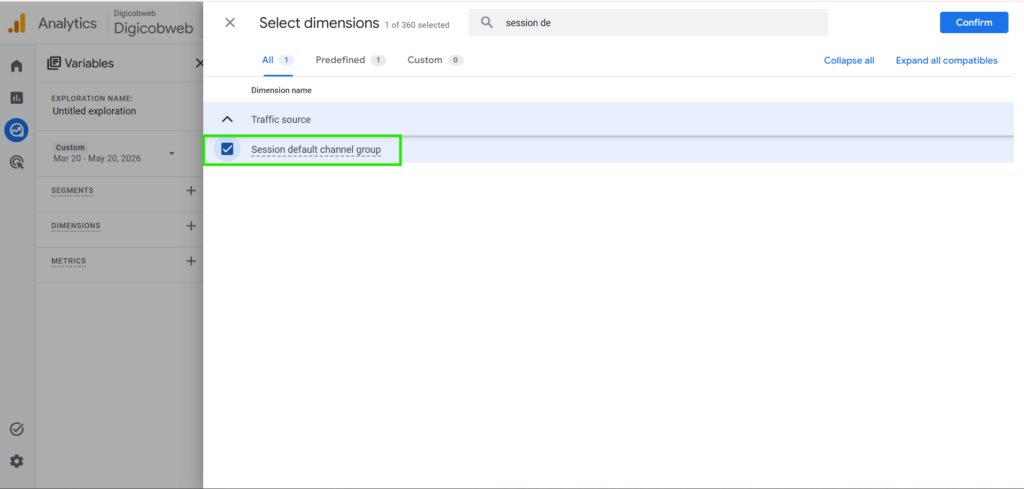
In the Variables panel on the left, click the + next to Dimensions. Search for “Session default channel group” and add it to your dimension list. Then drag it into the Rows section in the Settings panel.
This gives you a breakdown of all your traffic sources side by side with the new AI assistant row visible if your property is receiving any recognized AI traffic.
Step 3: Add the AI assistant filter.
To isolate AI traffic specifically, add a filter to the report. In the Settings panel, scroll down to Filters and click Add filter. Set the dimension to “Session default channel group,” the match type to “exactly matches,” and the value to “AI Assistant.”
This narrows the report to show only AI-sourced sessions, making it easier to track the channel in isolation.
Step 4: Set the Last 90 Days and Compare to Prior Period
In the date range selector at the top of the report, set the primary range to the last 90 days. Then enable Compare and select the prior 90-day period.
You are looking for trajectory here, not the absolute numbers. A 12% increase in AI sessions quarter-over-quarter at 400 sessions per month is a meaningful signal. The same growth rate at 40,000 sessions per month is a headline result. Both deserve to be documented.
Step 5: Export and Save Your Baseline
Once the data is visible, export it. In the top right corner of the Explore report, click the Export icon and save as a CSV or Google Sheet. Label the file clearly with the date range.
Add a short note: the percentage of total sessions AI accounts for in this period, which AI source is driving the most traffic, and which landing pages appear most often. In six months, this document will be your evidence of growth or the benchmark that reveals a gap in your content strategy.
When Looker Studio Works Better Than GA4 Explore
For long-term AI traffic trend analysis, Looker Studio has a meaningful advantage over date limitations. GA4 Explore only lets you look back 14 months. That is fine for now, but in 12 months when you want to show year-over-year AI traffic growth, you will hit that wall. Looker Studio has no such limit.
Connect your GA4 property to a Looker Studio template, apply your AI channel filter, and build a dedicated AI traffic dashboard that tracks sessions, engagement rate, average session duration, and conversions for the AI Assistant channel over time. This gives you a live, shareable view that updates automatically, a practical asset for monthly client reporting.
How to Break Down AI Traffic by Specific Tool
The AI Assistant channel tells you that AI traffic arrived. It does not tell you which tool sent it. For strategy decisions, particularly which platforms to optimize content for, you need the source-level breakdown.
Switching to Session Source View
Go to Reports → Acquisition → Traffic Acquisition in the standard GA4 interface. At the top of the data table, change the primary dimension from “Session default channel group” to Session source.
Now add a filter: set the medium dimension to “exactly matches” and type ai-assistant. This filters the source table to show only sessions where the medium was assigned as ai-assistant, meaning only recognized AI tool traffic.
You will now see a list of individual AI sources: chatgpt.com, perplexity.ai, claude.ai, and any other platforms GA4 has classified in your property.
Reading the ChatGPT vs Claude vs Perplexity Breakdown
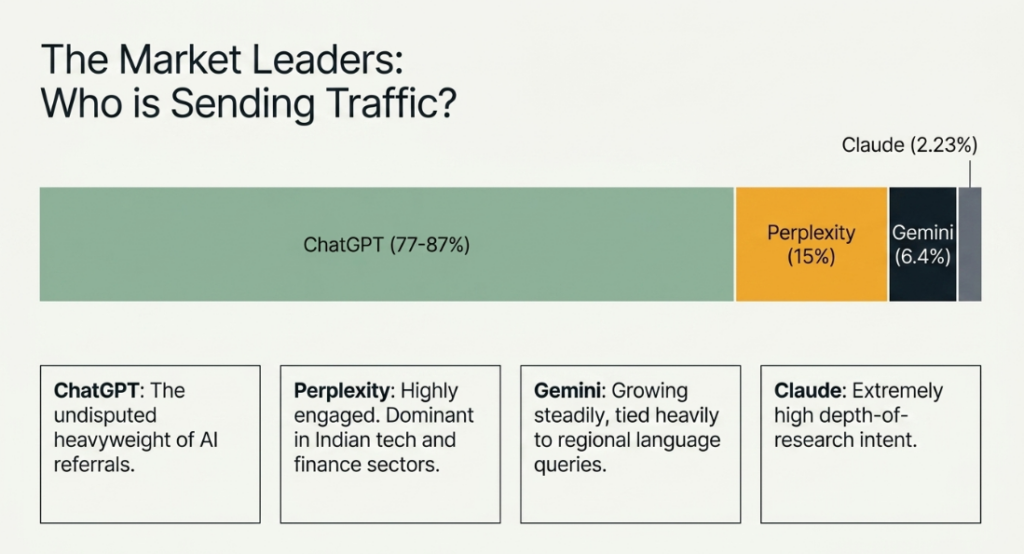
As of mid-2026, ChatGPT dominates AI referral traffic with between 77% and 87% of total AI-sourced sessions across most websites. Perplexity holds approximately 15%, followed by Google Gemini at 6.4%. Claude accounts for a smaller share, around 2.23%, of AI referrals, but those visitors tend to be highly engaged, arriving with a specific research intent after already receiving a summarized answer.
For Indian audiences, Perplexity has a notably strong presence among tech, finance, and academic users. If your content targets those verticals, the Perplexity source row in your breakdown deserves close attention.
Note which sources are sending traffic and, importantly, which sources are absent. If you expected a certain AI platform to be referring traffic and it is not showing up, either your content is not being cited there or that platform’s traffic is arriving without referrer data and landing in your “Direct” bucket.
How to Find Which Pages AI Tools Are Actually Citing
The source-level breakdown tells you which AI platforms are sending traffic. The landing page data tells you what content is earning those citations, and that is where the real strategic value lies.
1. Adding the Landing Page Secondary Dimension
In the same traffic acquisition report filtered for the AI assistant medium, click “Add secondary dimension” and search for “Landing page.” This adds a second column to the table showing which specific page on your site the AI-referred visitor landed on first.
The resulting table shows you, for each AI source, which pages are being cited often enough to drive clicks. A page that appears consistently across multiple AI sources is being referenced widely; it is a content asset that AI tools trust and cite.
2. What to Do With the Data You Find
Once you can see which pages are earning AI citations, you have three immediate actions:
Review those pages and make sure they are up to date. If AI tools are citing a page with outdated statistics or an old methodology, you are sending visitors to content that may damage trust. Update the data, refresh the publish date, and confirm the page is technically accessible to AI crawlers.
Strengthen the CTAs on your most-cited pages. An AI-referred visitor has already been warmed up by the AI’s summary. They clicked through because they want more. A well-placed, specific A CTA, a free audit, a resource download, or a consultation booking converts this intent into action.
GA4 AI Auto-Grouping vs. Manual Channel Groups: Which Should You Trust?
Now that GA4 handles AI traffic classification automatically, a genuine question emerges for agencies and analytics professionals: Should you rely on the native system or continue managing manual custom channel groups?
1. Where Auto-Grouping Gets It Right
The native AI assistant channel wins on maintenance. It updates as GA4 extends its recognized referrer list, requires no property-level access to configure, and does not consume one of your custom channel group slots. For properties where a junior analyst or client manages the GA4 account, auto-grouping removes a significant operational burden.
It also delivers consistent cross-property reporting. If you manage 10 GA4 properties for clients, all 10 now get AI traffic classified the same way without needing to replicate custom channel configurations across each property individually.
2. Where Manual Override Wins
The native system has real blind spots. GA4 has not published its full list of recognized AI referrers, and tools like DeepSeek, Grok, and Meta AI may not be included in the automatic classification. If your audience uses a mix of AI tools, the native channel will undercount your actual AI-sourced traffic.
Manually customizing channel groups using regex allows you to define exactly which domains you want to classify as AI traffic.
You can build a manual rule in GA4 that catches all the AI platforms the native system might miss. The rule looks at the session source and flags any visit coming from chatgpt.com, perplexity.ai, claude.ai, gemini.google.com, copilot.microsoft.com, deepseek.com, grok.com, or meta.ai. Any source in that list gets grouped under your custom AI channel.
For agencies that need audit-grade accuracy, manual configuration remains the more reliable option.
Why Is Your AI Traffic Showing as Unassigned? How to Fix It
Unassigned traffic is one of the most common GA4 problems agencies deal with, and it gets significantly worse when AI traffic is involved. Here is why it happens and exactly how to fix it.
The 3 Most Common Causes of Unassigned AI Traffic
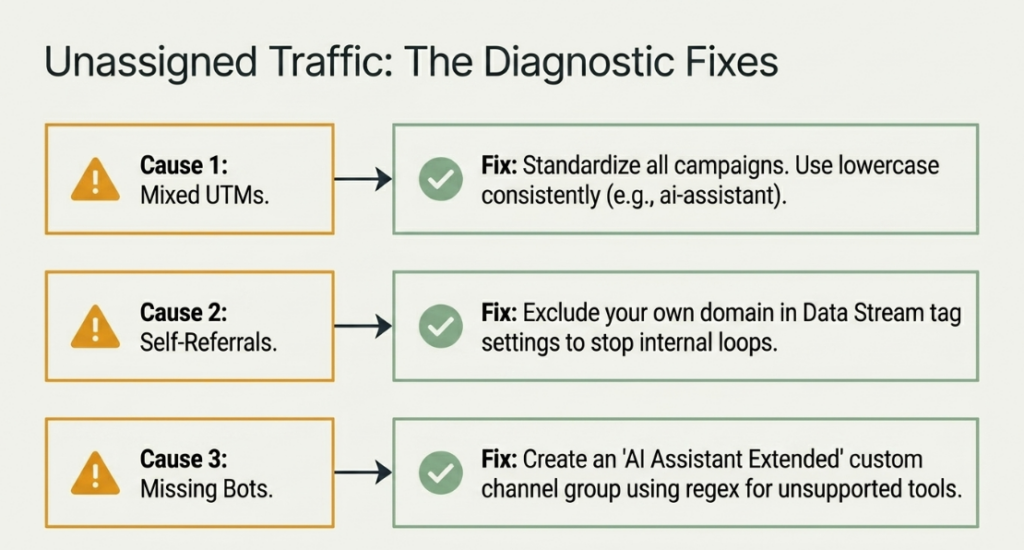
Cause 1: Missing or incorrect UTM parameters. If your team is creating campaigns including content partnerships, newsletter links, or PR placements without consistent UTM tagging, those sessions arrive with partial source data that does not match any channel rule. GA4 defaults them to Unassigned.
Cause 2: Self-referral from your own domain. If your GA4 property is not properly configured to exclude your own domain from referral tracking, sessions that move between your subdomains or platforms get counted as self-referrals and misclassified.
Cause 3: AI traffic arriving without referrer data. When a user copies a URL from an AI response and pastes it into a browser directly, or opens it in an in-app browser that strips headers, GA4 receives no referrer information. This session lands in Direct, not Unassigned, but it contributes to the overall attribution problem.
The UTM Tagging Fix
Audit every active campaign for UTM consistency. The most common mistake Indian agencies make is using mixed medium labels email, Email, e-mail, and newsletter all in the same account, which splits the email channel across multiple rows and inflates Unassigned.
Standardize on lowercase UTM values. GA4’s channel rules are case-sensitive in some matching modes. A session tagged utm_medium=AI-Assistant will not automatically match the ai-assistant medium rule. Use lowercase consistently across all campaign tagging.
The Custom Channel Group Fix for Unassigned AI Traffic
If you are seeing AI tool domains appearing inside your unassigned rows, for example, ChatGPT.com sessions with no medium, it means those sessions arrived before GA4’s native AI classification was active, or the referrer was partially passed but did not trigger the auto-rule.
To catch these in a custom channel group: go to Admin → Data Display → Channel Groups → Create New Channel Group. Add a rule: Session source matches regex chatgpt\.com|perplexity\.ai|claude\.ai|gemini\.google\.com|copilot\.microsoft\.com. Name the channel “AI Assistant Extended.” This works retroactively on historical data in Explore reports.
Fix Checklist for Indian E-Commerce and Agency Sites
Before closing this section, run through this quick audit on your GA4 property:
- All campaign UTMs use lowercase medium values
- Your own domain is excluded from referral sources in Admin → Data Streams → Configure Tag Settings.
- A custom channel group rule exists to catch AI referrers not covered by the native system
|
Ready to set up GA4 AI tracking for your property and get a complete audit of your current setup? |
| Contact us |
How Indian E-Commerce Teams Can Use This Data
Indian e-commerce traffic is characterised by high mobile usage, multi-platform discovery journeys, and significant influence from social commerce and price comparison platforms. A user might discover a product on WhatsApp, check reviews on Perplexity, and complete a purchase on your site, but only the last click may be attributed correctly in a standard GA4 setup.
The AI Assistant channel becomes particularly valuable for tracking the research stage of this journey. When an Indian consumer asks Perplexity “best wireless earphones under 3000 rupees” and your product page or review article appears in the citation list, that click is trackable through GA4 as an AI assistant session. Over time, the landing page data will tell you which of your product and category pages are being surfaced by AI tools to high-intent Indian buyers.
The Limitations of GA4’s AI Tracking (And How to Work Around Them)
The new AI assistant channel is a genuine step forward. It is also important to understand precisely what it does not tell you.
1. The Dark Traffic Problem: 70% May Be Invisible
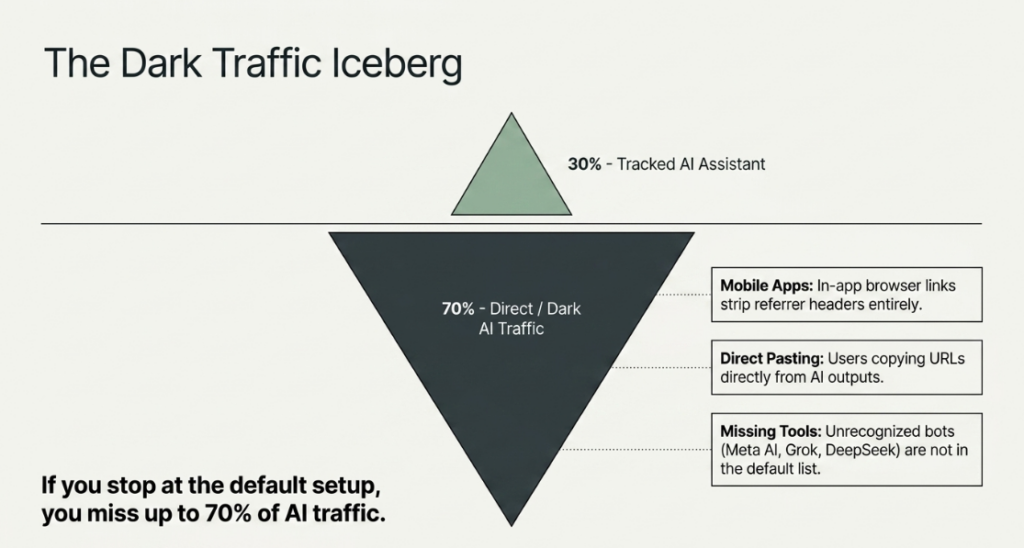
A 2026 study by Clickport analyzing over 446,000 sessions across sites using dedicated AI traffic detection found that approximately 70% of AI referral traffic arrived without a referrer header and was categorized as “Direct” rather than “Referral” or “AI Assistant.”
This happens in three ways. First, users copy URLs from AI responses and paste them directly into a browser; no referrer is passed. Second, AI platforms open links in embedded in-app browsers that suppress referral data for privacy or technical reasons. Third, some AI tools generate traffic through indirect pathways a user reads an AI summary, searches for your brand name in Google, and lands on your site through organic search. The AI’s role in that journey disappears entirely.
The practical implication: if your AI Assistant channel is showing 500 sessions per month, your real AI-influenced traffic may be closer to 1,500 to 2,000 sessions. Treat the GA4 number as a floor, not a ceiling.
2. Mobile In-App Browsers and Stripped Referrers
The mobile referrer stripping problem is permanent; there is no fix. When a ChatGPT mobile app user taps a citation link, it opens in an in-app browser that does not pass a referrer header. GA4 receives a Direct session. This will continue to happen regardless of how GA4’s channel rules evolve, because the referrer is stripped before it ever reaches your analytics tag.
The workaround is awareness: if you see an unexplained rise in direct traffic to specific content pages, not your homepage, but specific articles or product pages, treat that pattern as a signal of AI-influenced traffic that is not being attributed. Track those pages separately in an Explore report and monitor their engagement metrics alongside your confirmed AI Assistant sessions.
3. AI Tools Not Yet Tracked by GA4
GA4’s recognized AI referrer list is not public and is not exhaustive. Major platforms including Meta AI (which has over 600 million active users), Grok (embedded in X), DeepSeek, and You.com may or may not be in the native classification list.
Until GA4 publishes its full list, the safest approach is to maintain a custom channel group as a backup broad enough to catch platforms that the native system misses. Revisit and update your regex pattern quarterly, or whenever a new AI platform sees significant adoption.
What to Do With Your AI Traffic Data Turning Numbers Into Strategy
Prioritise Pages That Are Already Getting AI Citations
The landing page data from your AI traffic report is your most actionable output. Any page that consistently appears as a landing destination from AI sources is already being cited, meaning AI tools have deemed it relevant and trustworthy enough to reference.
These pages deserve priority in your content calendar. Update statistics, strengthen the evidence base, improve the visual design, and sharpen the CTAs. A page that AI tools cite regularly is an asset worth protecting and growing.
Create Content That AI Tools Love to Cite
AI tools tend to cite content that directly and concisely answers specific questions. Long-form guides with clear-headed structure, data-backed claims, and author expertise signals are cited more often than thin, keyword-stuffed articles. Pages that appear in Google’s PAA (People Also Ask) boxes tend to also appear in AI citations, because both systems are selecting for the same quality signals.
For Indian brands, this means investing in question-answering content that addresses specific, local search queries: “best GA4 setup for Indian agencies,” “how to track Flipkart affiliate traffic in GA4,” and “why is my GA4 showing unassigned traffic in India? ” These long-tail, intent-rich queries are exactly what AI tools are asked for by Indian users, and they are underserved by generic global content.
Check Your robots.txt for AI Crawlers
Before any optimization effort is worthwhile, confirm that AI platforms can actually crawl your site. Open your robots.txt file (yourdomain.com/robots.txt) and verify that none of the following user agents are blocked:
- ChatGPT-User
- OAI-SearchBot
- Perplexity-User
- Claude-SearchBot
- GoogleOther (used by some Google AI crawlers)
If your robots.txt uses a broad User-agent: * disallow rule, check that AI bot agents are not caught in it. Blocking these crawlers means AI tools cannot index your content, and if they cannot index it, they cannot cite it. No amount of GA4 optimization will fix a crawlability gap.
Track AI Traffic Trajectory Monthly
Set a recurring monthly task to review your AI Assistant channel data. Track three numbers: total AI sessions, AI sessions as a percentage of all sessions, and the engagement rate of AI-sourced visitors versus your site average.
Compare those numbers month over month. Present them in a simple table alongside your organic, paid, and social channel data. Over 6 to 12 months, this table will tell a clear story, and it will be the data that demonstrates the ROI of your content strategy before AI search becomes a mainstream KPI.
Conclusion: Set Your Benchmark Today, Thank Yourself Later
AI search is not a future trend to prepare for. It is a present channel you are already receiving traffic from; you just have not been measuring it properly until now.
GA4’s new AI Assistant default channel group removes the biggest barrier to AI traffic tracking. You no longer need custom regex configurations or editor-level access to isolate AI-sourced sessions. The data is there, it is being classified automatically, and the only decision left is whether you act on it now or wait until your competitors have a 12-month head start.
The three things to do this week: set your 90-day benchmark in GA4. Explore, run the landing page report to find your most-cited pages, and check your robots.txt to confirm AI crawlers have access to your content.